Student Payment
My Payments shows a full history of the payments linked to your applications, so you can confirm a payment went through or check why one didn’t.
Opening My Payments
Go to the Applications menu
In the sidebar, select Applications to expand it, then select My Payment.
View your payment history
Every payment you have initiated appears in a table, most recent first.
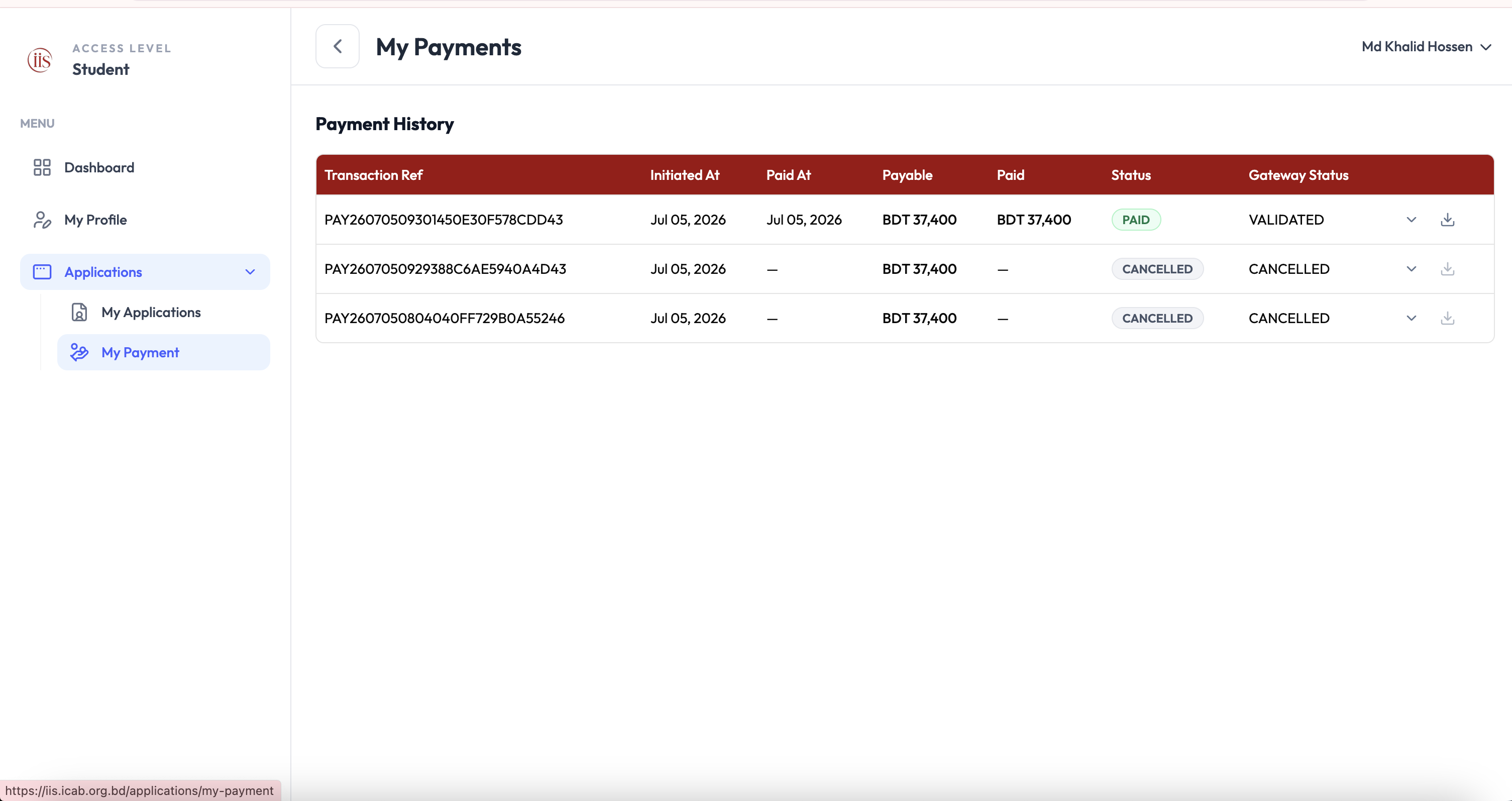
My Payments — Payment History table
Reading the payment history
Each row shows:
- Transaction Ref — a unique ID for the payment attempt, e.g.
PAY26070509301450E30F578CDD43. Quote this if you contact support about a payment. - Initiated At — when you started the payment.
- Paid At — when the payment was confirmed. Shown as a dash (—) if it was never completed.
- Payable — the amount due for that transaction.
- Paid — the amount actually received. Shown as a dash if nothing was paid.
- Status — the outcome of the transaction (see below).
- Gateway Status — the result reported back by the payment gateway (e.g. Validated, Cancelled).
What the statuses mean
- Paid — the payment was completed and validated by the gateway. No further action needed.
- Cancelled — the payment attempt did not go through, either because it was cancelled or it failed at the gateway. Go back to the related application and try paying again.
If a payment is cancelled, a new transaction reference is created the next time you try — it’s normal to see more than one row for the same application.
Downloading a receipt
Use the download icon at the end of a row to save a copy of that transaction’s receipt. Select the chevron next to Gateway Status to expand a row for more detail.
For the underlying application these payments belong to, see My Applications. For the ICAB-side reconciliation view, see Payment Status.