My Applications
My Applications is where you keep track of every application you have started — finish a draft, check its status, or review one you already submitted.
Opening My Applications
Go to the Applications menu
In the sidebar, select Applications to expand it, then select My Applications.
View your list
Every application you have started appears in a table — even unfinished drafts.
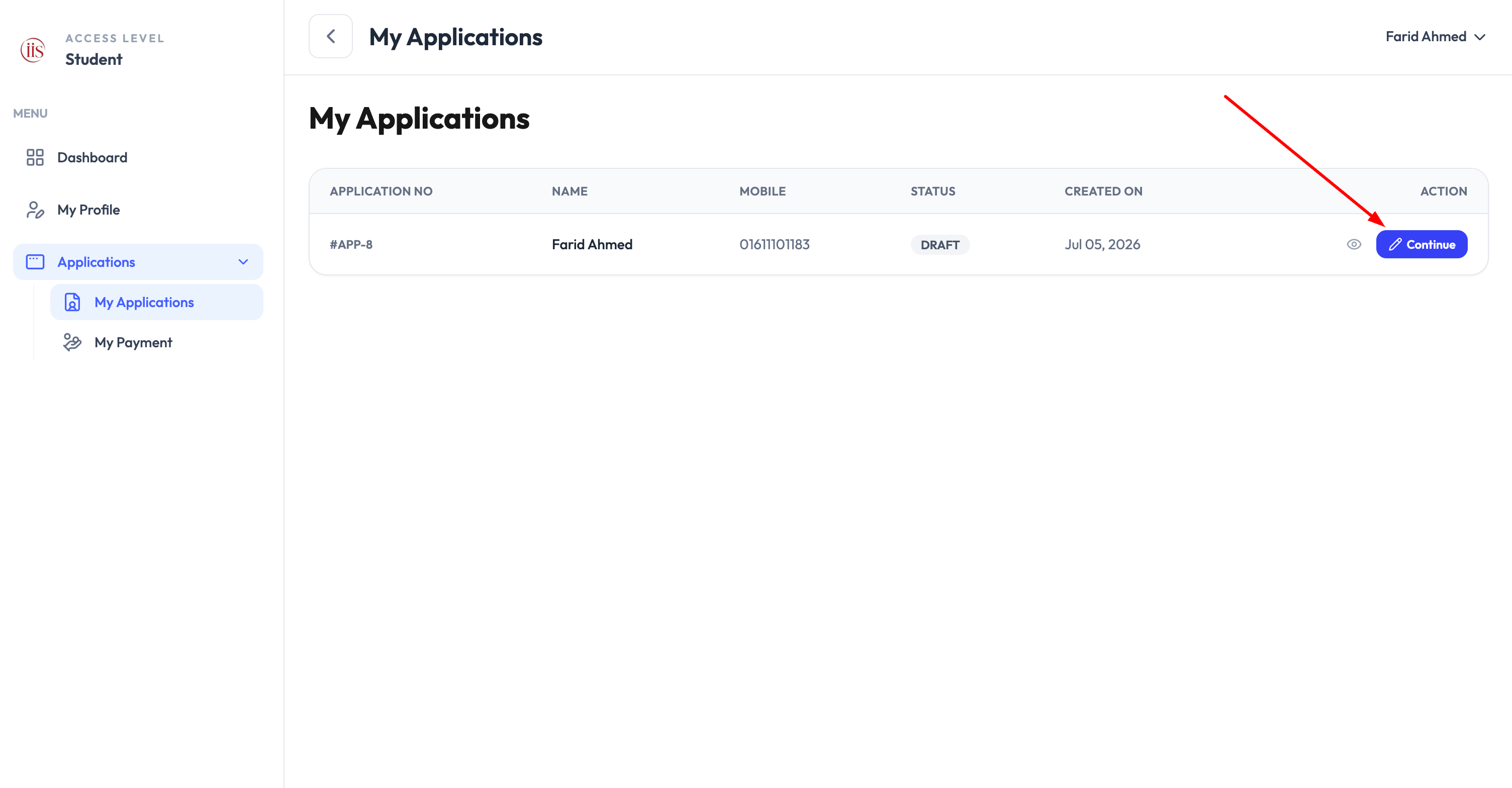
My Applications — one row per application, with a Continue button for drafts
Reading the list
Each row shows:
- Application No — a unique reference like
#APP-8. Quote this if you contact support about an application. - Name and Mobile — the applicant’s details on file.
- Status — where the application stands right now (see below).
- Created On — the date the application was started.
- Action — an eye icon to view the application, and a Continue button to resume a draft.
What the statuses mean
- Draft — started but not yet submitted. Select Continue to pick up where you left off; nothing is lost.
- Submitted / Under Review — sent in and waiting on ICAB staff to review it.
- Approved — accepted; no further action needed from you.
- Rejected — not accepted. Open the application to see the reason, if shown, and start a new one if you need to reapply.
Draft applications save automatically as you go, so you can close the page and come back later without re-entering your details.
Continuing or reviewing an application
Find the row
Locate the application by its Application No or Created On date.
Pick an action
Select Continue to finish a draft and proceed to payment, or select the eye icon to view a submitted application read-only.
For the full step-by-step of filling out and submitting a new application, see Applications. Once payment is complete, track progress in Payment Status.