My Students
My Students lists every student currently articled under your firm, so you can look up their details or check their Articleship period at a glance.
Opening My Students
Go to the Students menu
In the sidebar, select Students to expand it, then select My Students.
View your student list
Every student linked to your firm appears in a table.
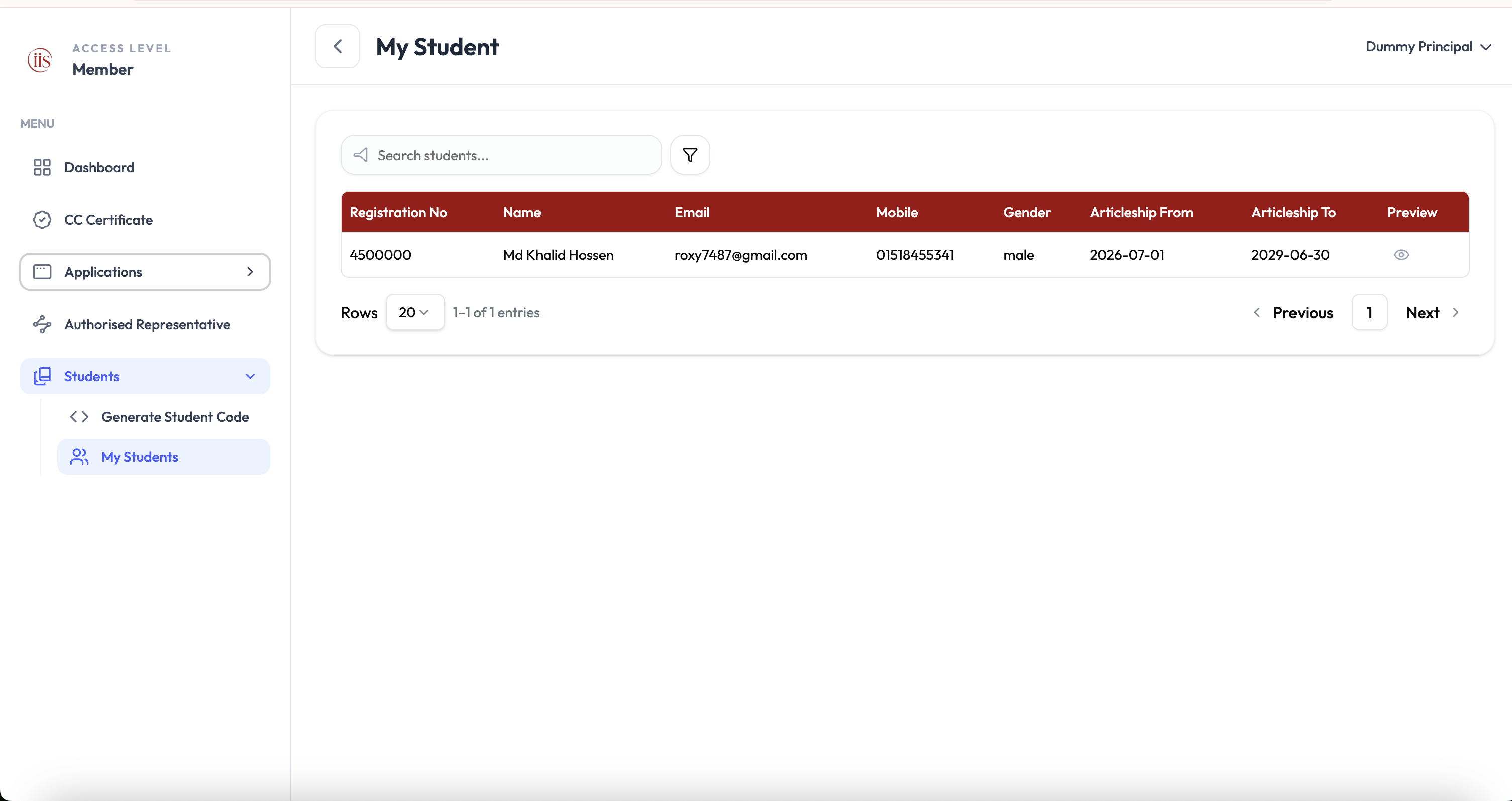
My Students — one row per articled student
Reading the list
Each row shows:
- Registration No — the student’s unique IIS registration number.
- Name, Email, and Mobile — the student’s contact details on file.
- Gender — as recorded on their profile.
- Articleship From and Articleship To — the start and end dates of their Articleship period under your firm.
- Preview — select the eye icon to view that student’s full record.
Searching and filtering
Search by name or number
Type into Search students… to quickly find one student in a long list.
Open Advanced Filters
Select the funnel icon next to the search box to open Advanced Filters.
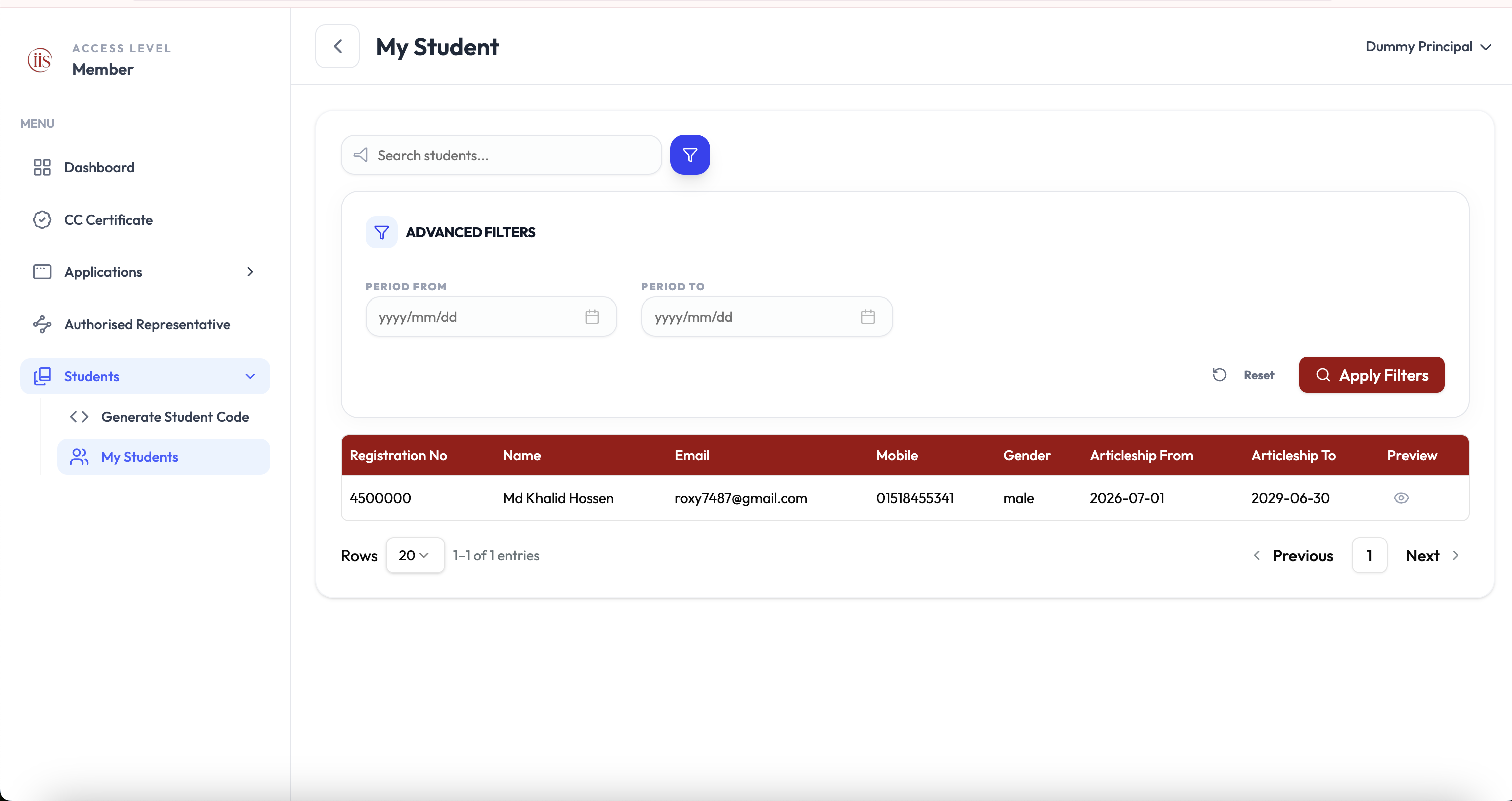
Advanced Filters — narrow the list by Articleship period Set a date range
Enter a Period From and Period To date to find students whose Articleship falls within that range, then select Apply Filters. Select Reset to clear the dates.
If the filtered list comes back empty, widen the date range or select Reset — a narrow Period From/To can easily exclude every student.
To generate a code for a new student before they register, see Generate Firm Code. To review or approve a student’s application, see Student Approval Workflow.