Generate Firm Code
A firm code links a student’s Articleship registration to your firm. As a Principal or Authorised Representative, you generate one for each student before they can complete their registration.
Opening Generate Student Code
Go to the Students menu
In the sidebar, select Students to expand it, then select Generate Student Code.
Review Student Codes History
The page lists every code you have generated so far, with the student’s name, phone, and code.
Generating a code
Select Code Generate
At the top right of Student Codes History, select Code Generate to open the Generate Firm Code dialog.
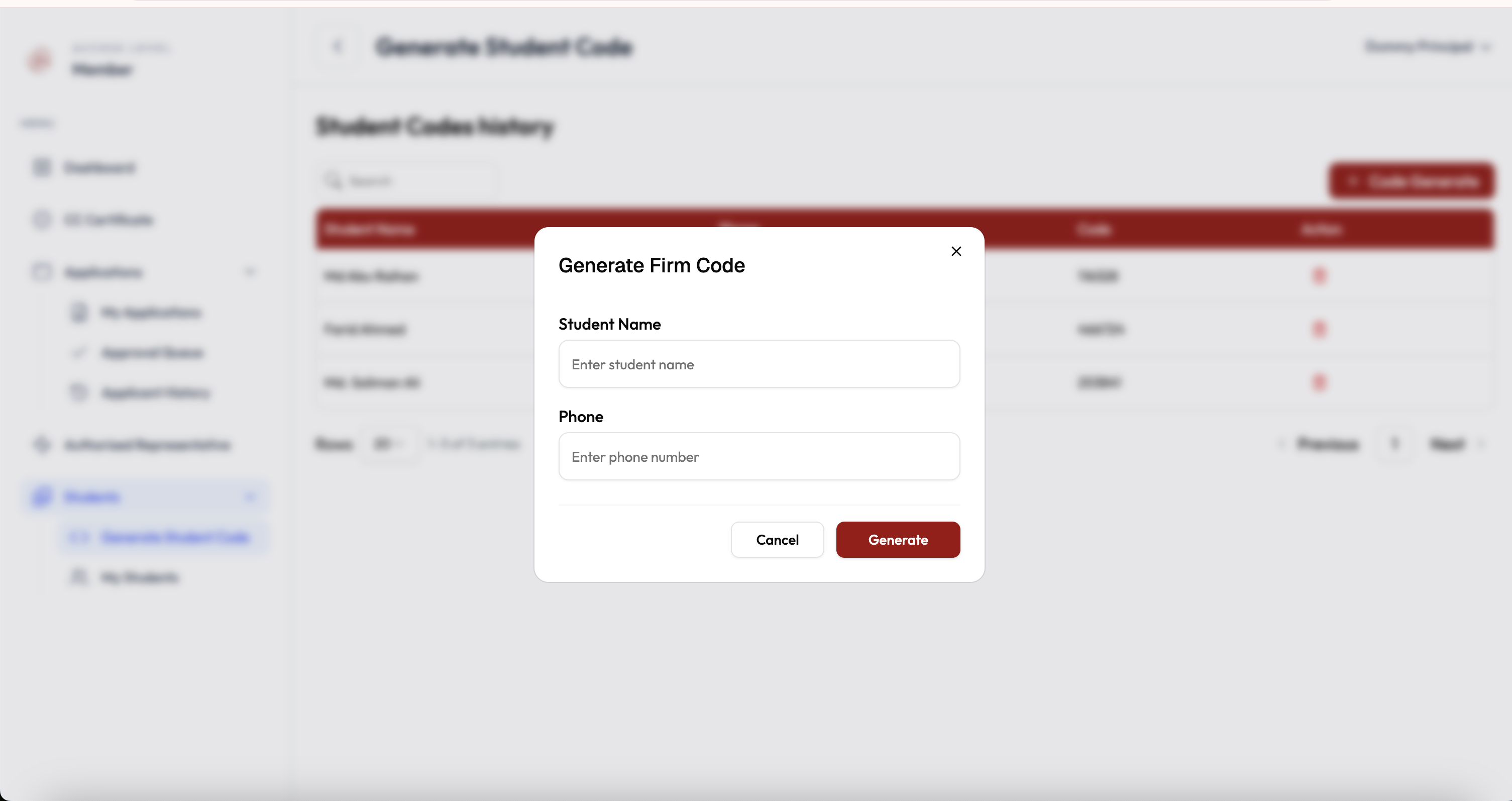
The Generate Firm Code dialog, opened from Student Codes History Enter the student’s details
Fill in Student Name and Phone exactly as the student will use them when registering.
Select Generate
Select the red Generate button to create the code, or Cancel to close the dialog without saving.
Sharing the code
The new code appears in the Code column of Student Codes History. Share this code with the student — they enter it as the firm verification code on the Student Type tab while registering. See Student Registration and Student Approval Workflow for what happens next.
Generate a separate code for each student. If a student loses their code, open the row and generate a replacement rather than reusing another student’s code.