Certificate of Practice (CoP)
Renew and download your Certificate of Practice (CoP) — both the Audit and Non-Audit versions — by uploading your latest Certificate of Return of Income Tax and waiting for ICAB to verify it.
Open IIS in Google Chrome and make sure downloads are allowed for the site, or Chrome may block your CoP PDF instead of saving it. See Allow downloads in Chrome below.
Opening CoP Certificate
Sign in to IIS
Log in to IIS with your Member account. See Getting Started if you need a refresher on signing in.
Go to Certificate of Practice (CoP)
In the sidebar, select Certificate of Practice (CoP).
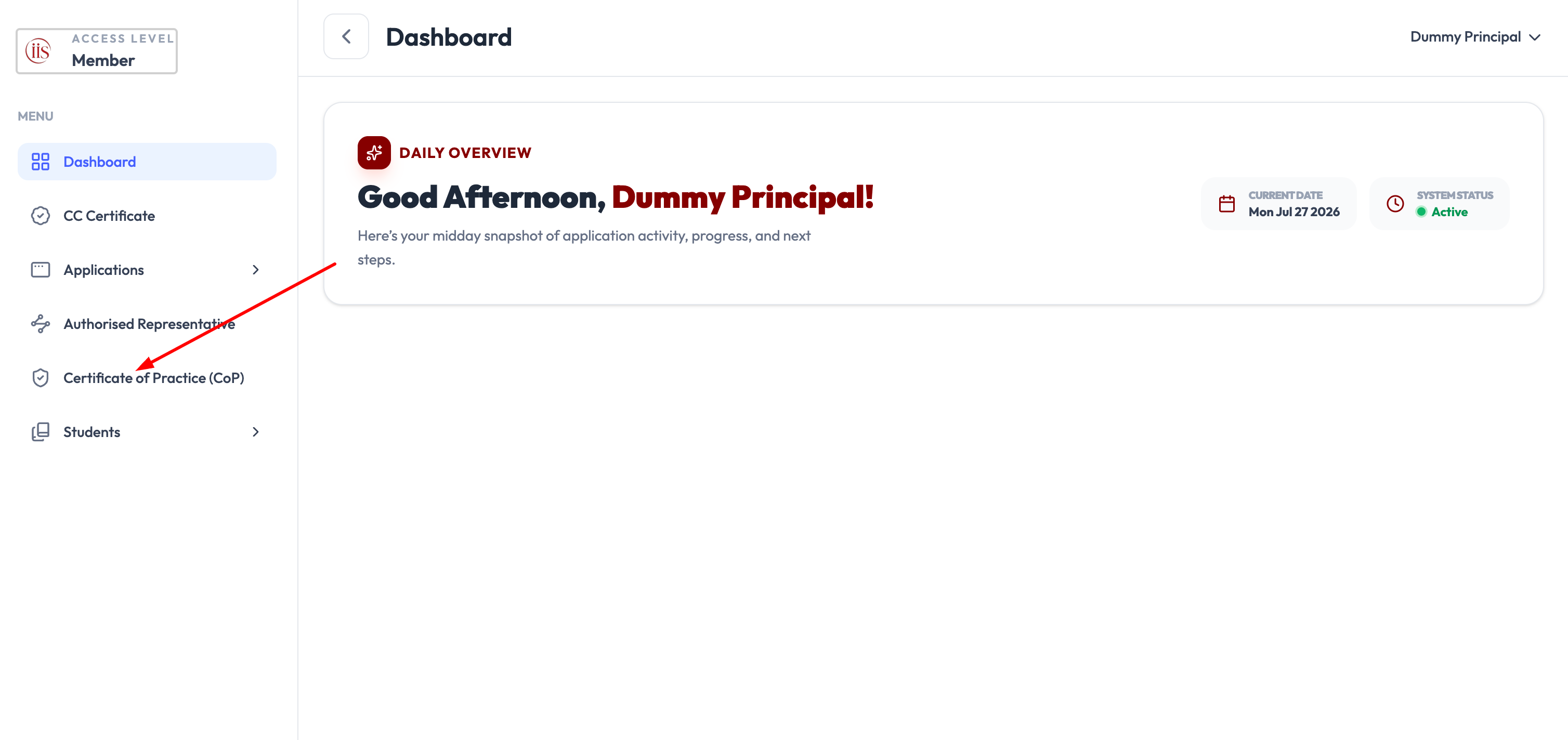
Select “Certificate of Practice (CoP)” in the sidebar Review the steps
The CoP Certificate page opens with a How to Download Your Renewal CoP Certificate panel explaining the three steps: upload your income tax certificate, wait for ICAB verification, then download your certificates.
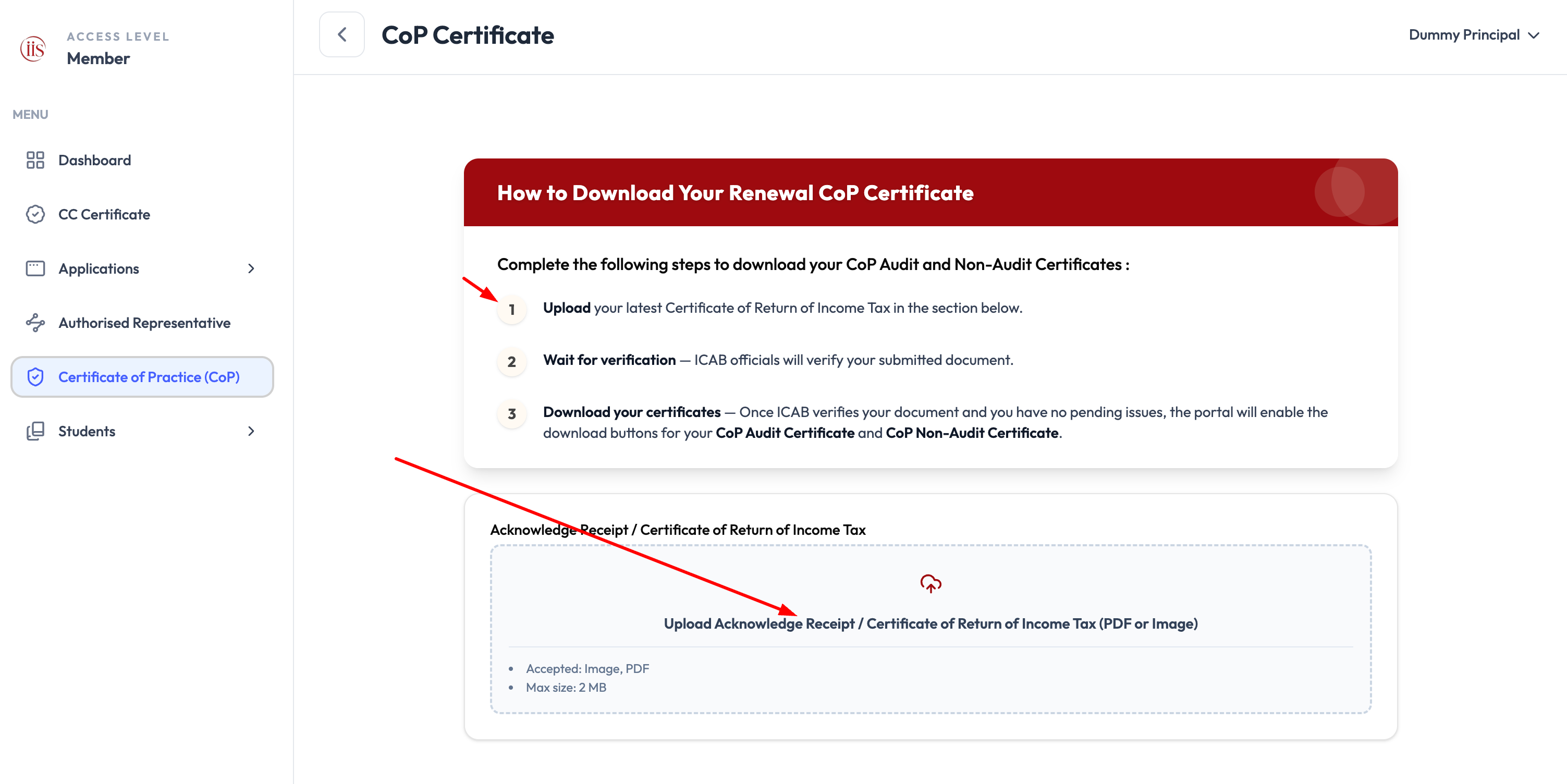
The CoP Certificate page — steps and the upload area
Uploading your Certificate of Return of Income Tax
Upload the certificate
In the Acknowledge Receipt / Certificate of Return of Income Tax box, select it to upload your latest tax certificate as an image or PDF (max 2 MB).
Confirm the upload
Once uploaded, IIS shows the file name and a green confirmation message: “Your Income Tax Certificate has been uploaded successfully and is pending verification by ICAB officials.” A Certificate of Practice summary card below shows your Member Name, Enrolment No., and Firm Name.
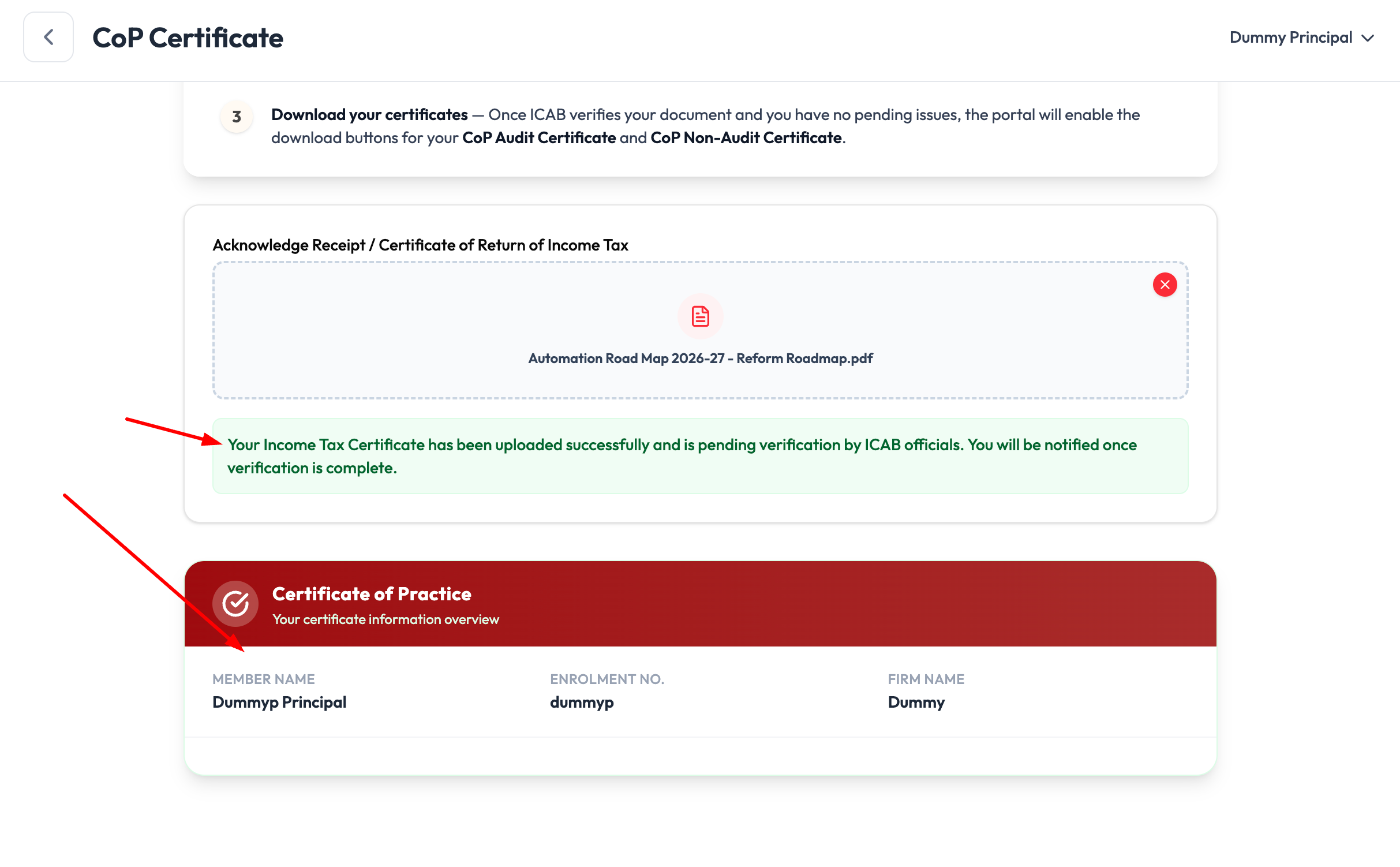
Upload confirmed — pending verification by ICAB officials
You don’t submit a separate request to download your CoP — simply upload your latest Certificate of Return of Income Tax and wait for ICAB to verify it.
Waiting for verification
ICAB officials review your submitted document. You’ll receive an email notification once verification is complete. If you have no other pending issues on your account, IIS enables the download buttons for both your CoP Audit and Non-Audit certificates automatically — no further action is needed on your part while you wait.
If your application shows as pending
If ICAB finds an outstanding issue on your account, the CoP Certificate page shows an Application Pending. The download buttons stay disabled until each listed reason is resolved.
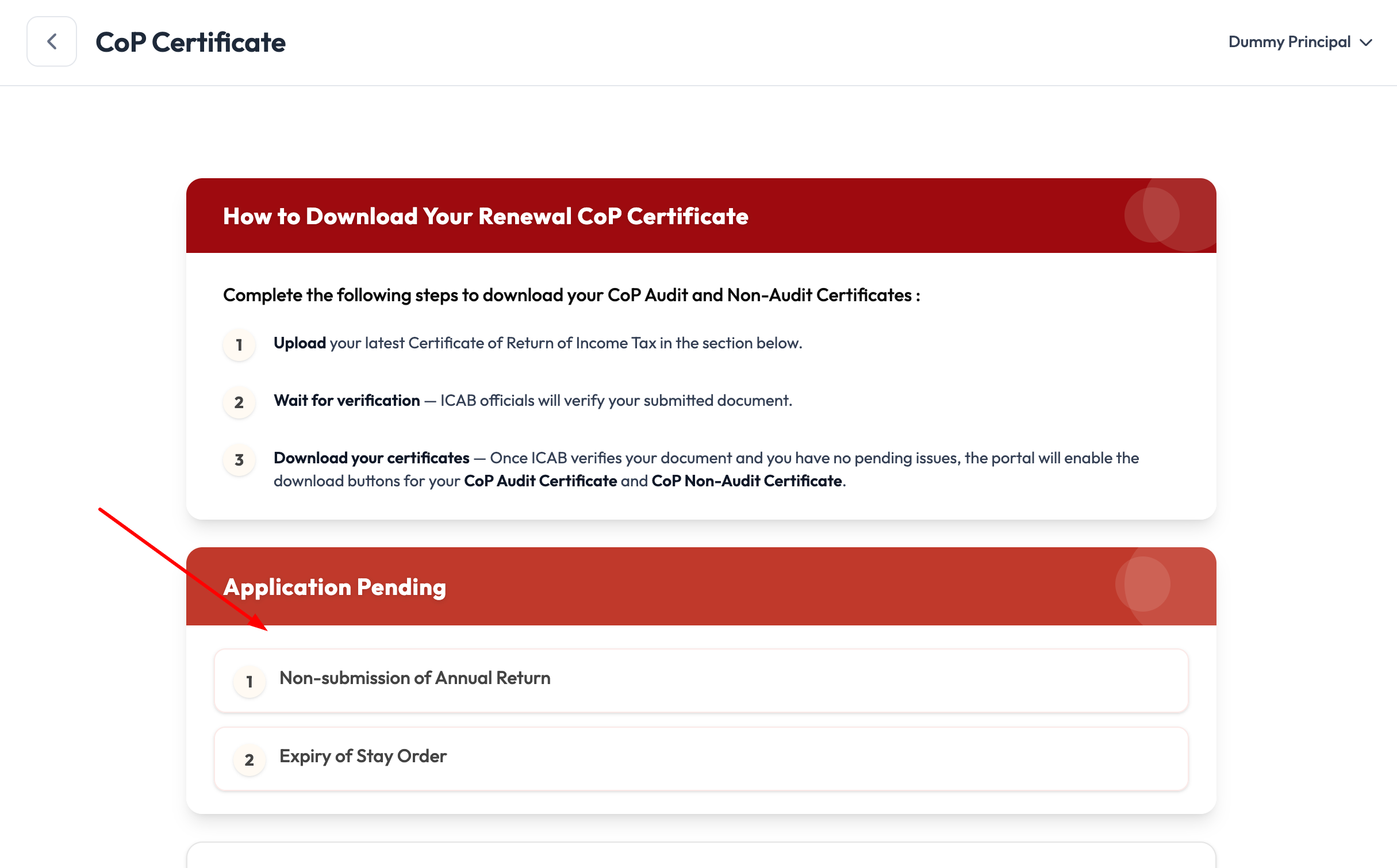
The card can show any combination of the following reasons:
Revocation of CoP
Your Certificate of Practice has been revoked. Contact ICAB for reinstatement.
Outstanding Annual Membership Fee
Select Pay now directly on the card to settle the fee online. If you have questions about the amount, contact ICAB at 01637556151 or sazzad@icab.org.bd.
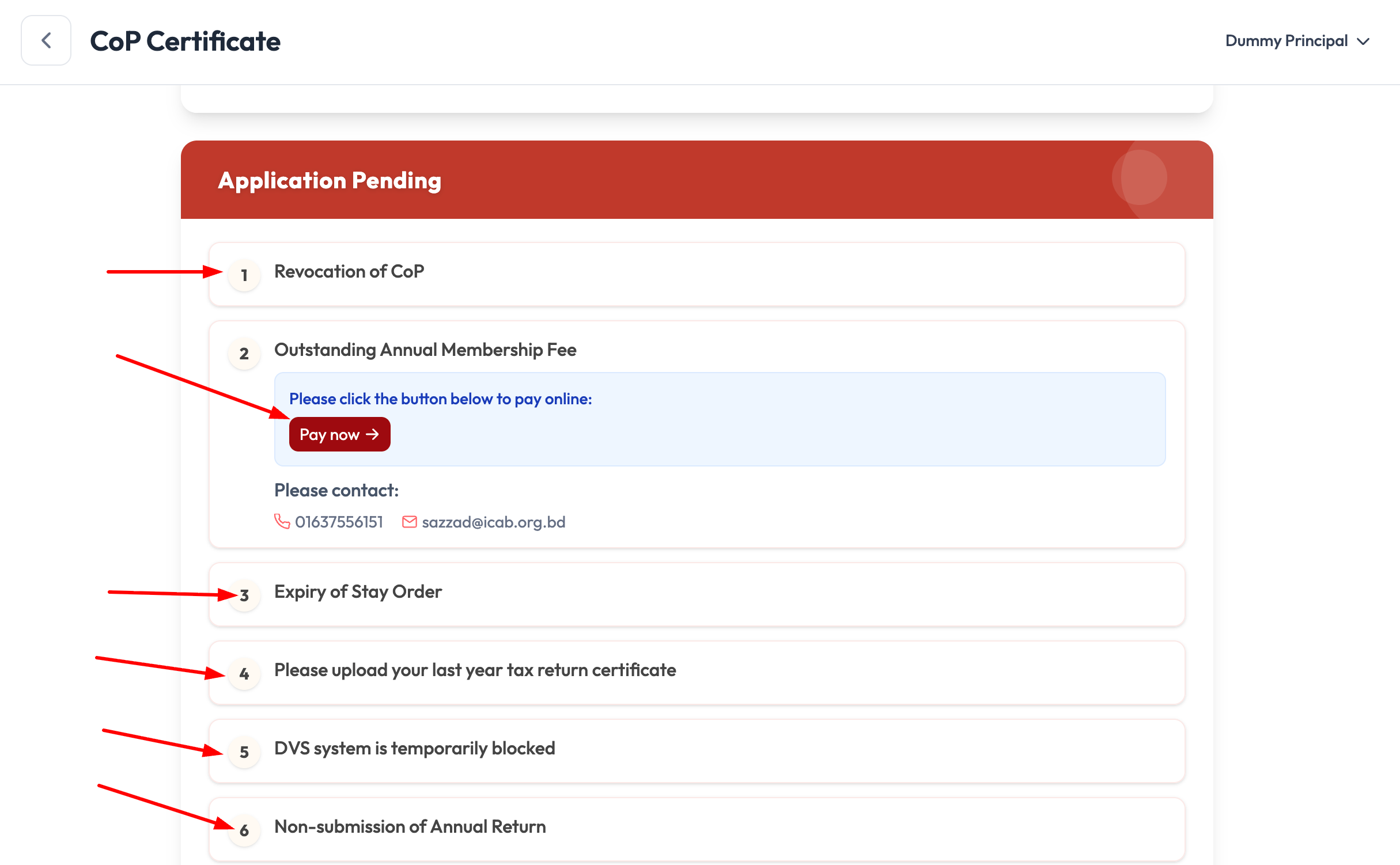
Outstanding fees can be paid online with the “Pay now” button Expiry of Stay Order
Your stay order has expired. Contact ICAB to renew or clarify your status.
Please upload your last year tax return certificate
Upload the missing certificate in the Acknowledge Receipt / Certificate of Return of Income Tax box further down the page.
DVS system is temporarily blocked
The Document Verification System is temporarily unavailable. No action is needed on your part — wait and check back later.
Non-submission of Annual Return
Submit your firm’s outstanding Annual Return before your CoP can be renewed.
Disciplinary Issue
There is an open disciplinary matter on your account. Contact ICAB for details on how to resolve it.
Shortfall of CPD Credit Hour
You haven’t met the required CPD credit hours. Contact ICAB at 01729229417 or mrupa@icab.org.bd for guidance.
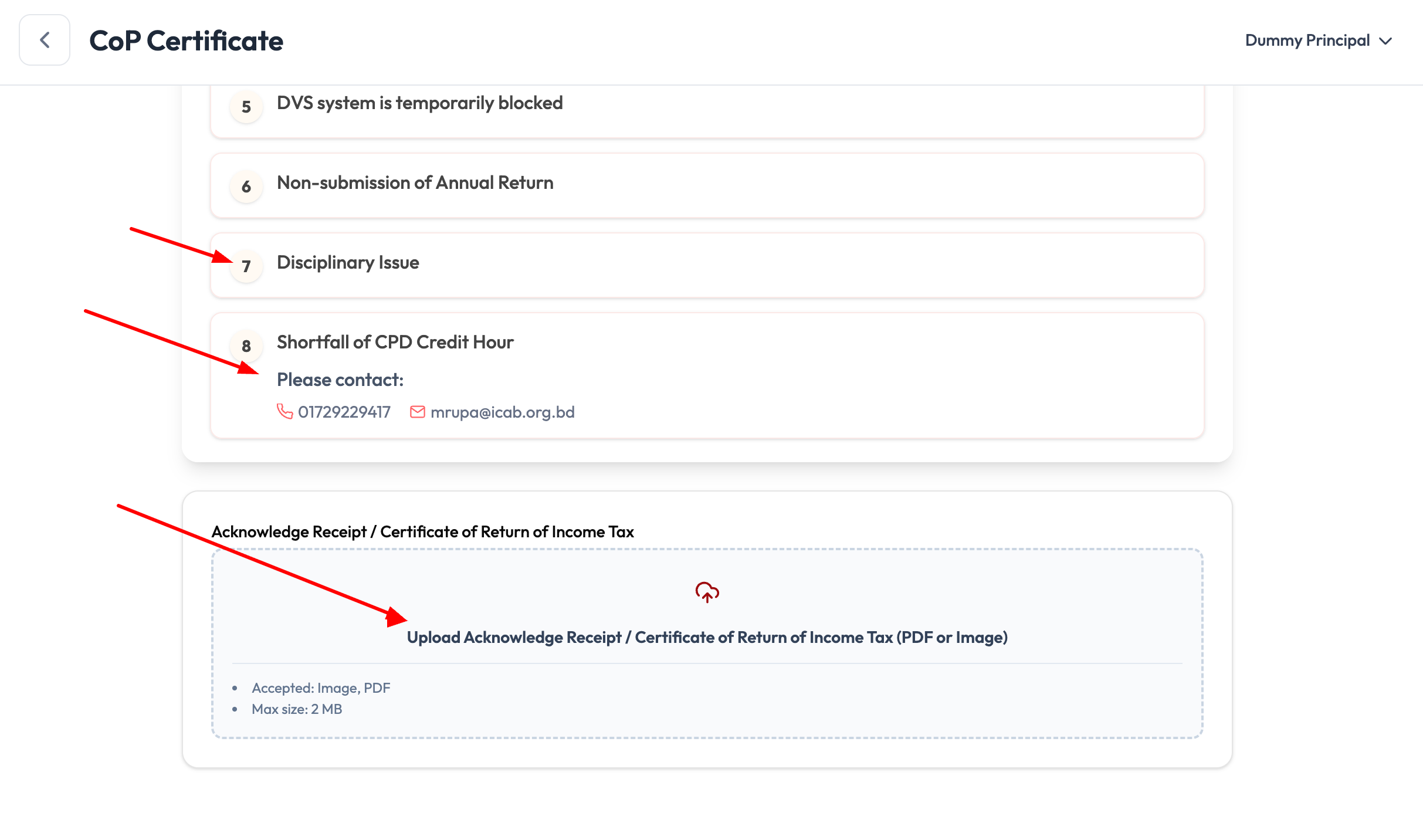
The Audit and Non-Audit download buttons stay disabled until all reasons on the Application Pending card are cleared — not just the one you’ve just fixed. Refresh the page after resolving an item to see it drop off the list.
Downloading your certificates
Return to Certificate of Practice (CoP)
After you receive the ICAB notification email, sign in and open Certificate of Practice (CoP) again.
Download Audit and Non-Audit CoP
In the Certificate of Practice card, select Download Non-Audit CoP as PDF or Download Audit CoP as PDF to save the certificate you need.
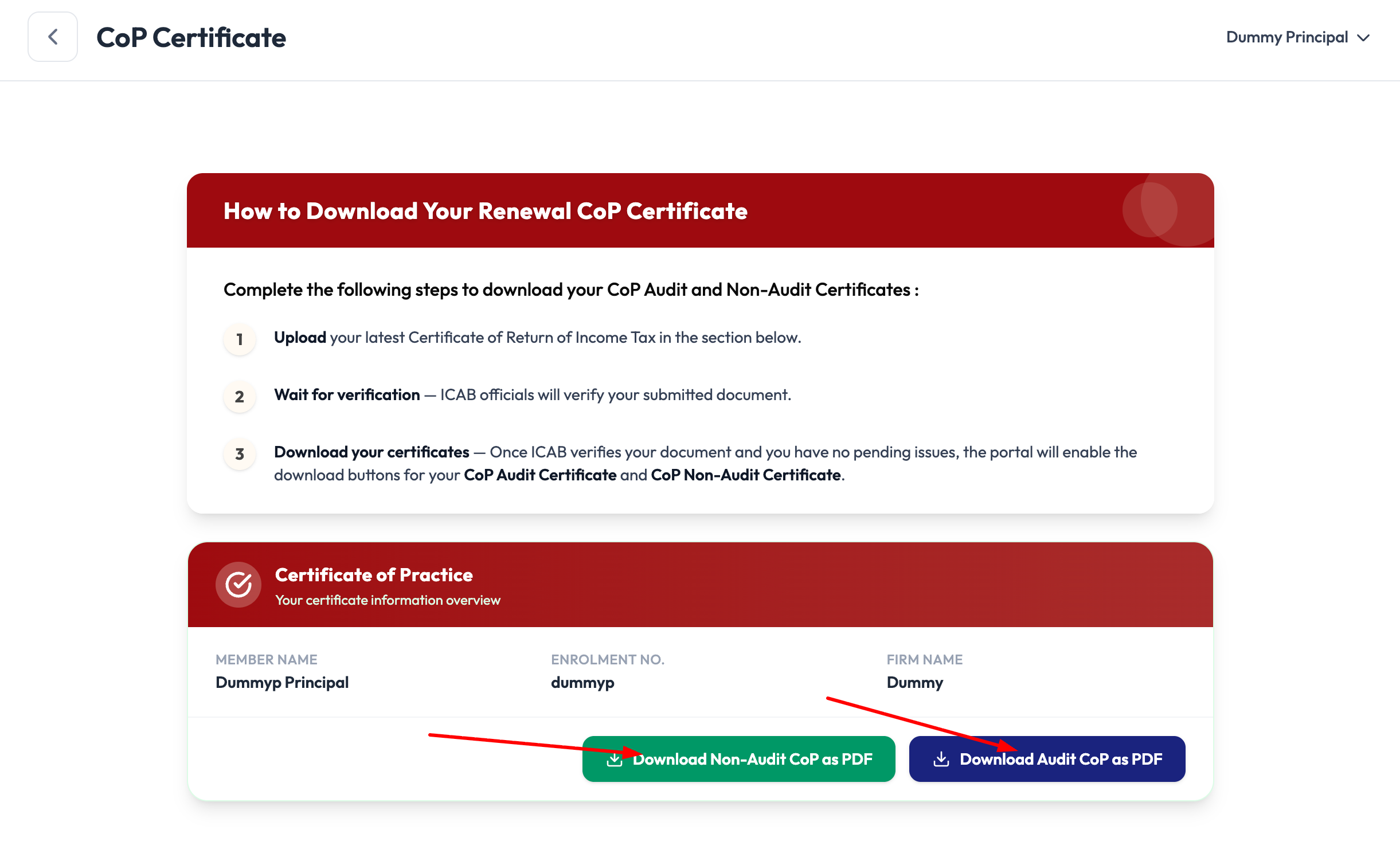
Download your CoP Audit or Non-Audit certificate as a PDF
The download buttons only appear once ICAB has verified your uploaded certificate and there are no pending issues on your account. If they’re missing, check back after you receive the verification email.
Chrome sometimes blocks the PDF from saving and shows “Blocked pop-up” or “Download blocked” in the address bar instead of downloading the certificate. If nothing happens after you select a download button:
Open the blocked-download icon
Select the download icon or “Download blocked” notice at the right of Chrome’s address bar.
Allow downloads for IIS
Choose Always allow downloads from this site, then select Done.
Download again
Select Download Non-Audit CoP as PDF or Download Audit CoP as PDF again — the PDF should now save normally.