CC Certificate
As a Principal or Authorised Representative, you upload a student’s signed Certificate of Completion (CC) here once their Articleship period has ended.
Opening CC Certificate
Go to CC Certificate
In the sidebar, select CC Certificate.
Review the list
Every CC certificate record for your firm’s students appears in a table.
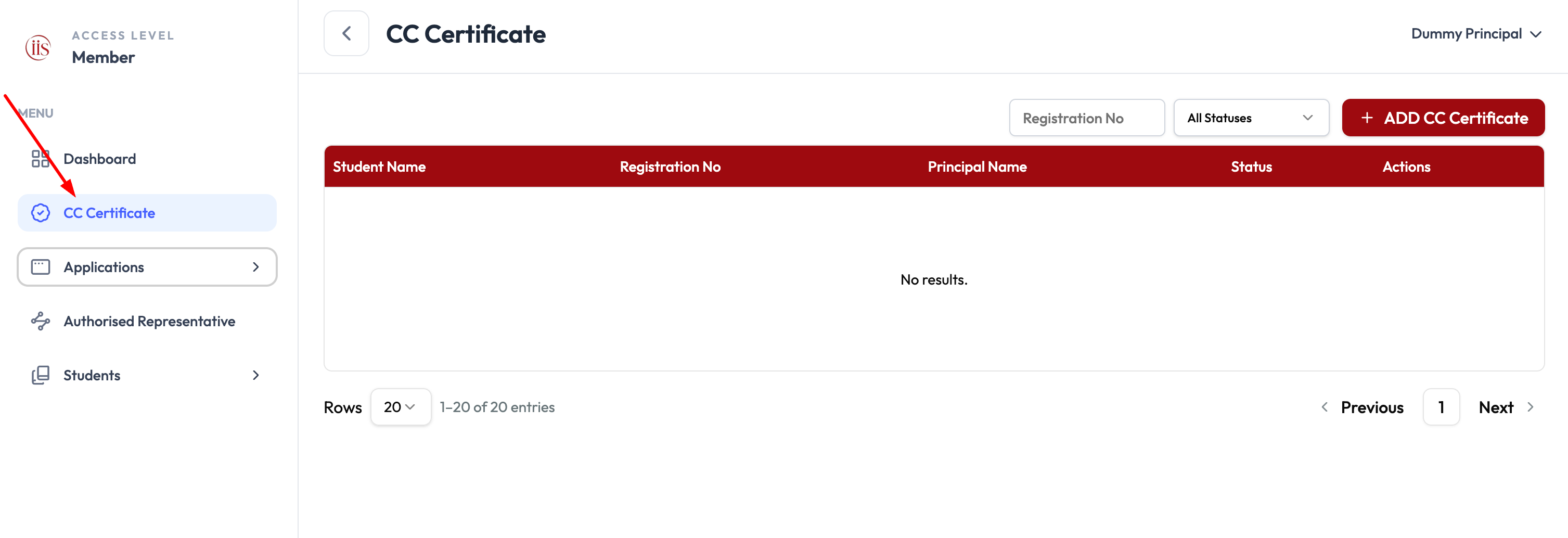
CC Certificate — the list of uploaded certificates
Reading the list
Each row shows:
- Student Name and Registration No — who the certificate belongs to.
- Principal Name — the supervising principal on record.
- Status — whether the certificate has been uploaded and processed.
- Actions — options to view or manage that record.
Use the Registration No search box and the All Statuses dropdown above the table to narrow the list down to one student or one status.
Uploading a certificate
Select ADD CC Certificate
Select the ADD CC Certificate button above the table to open the upload dialog.
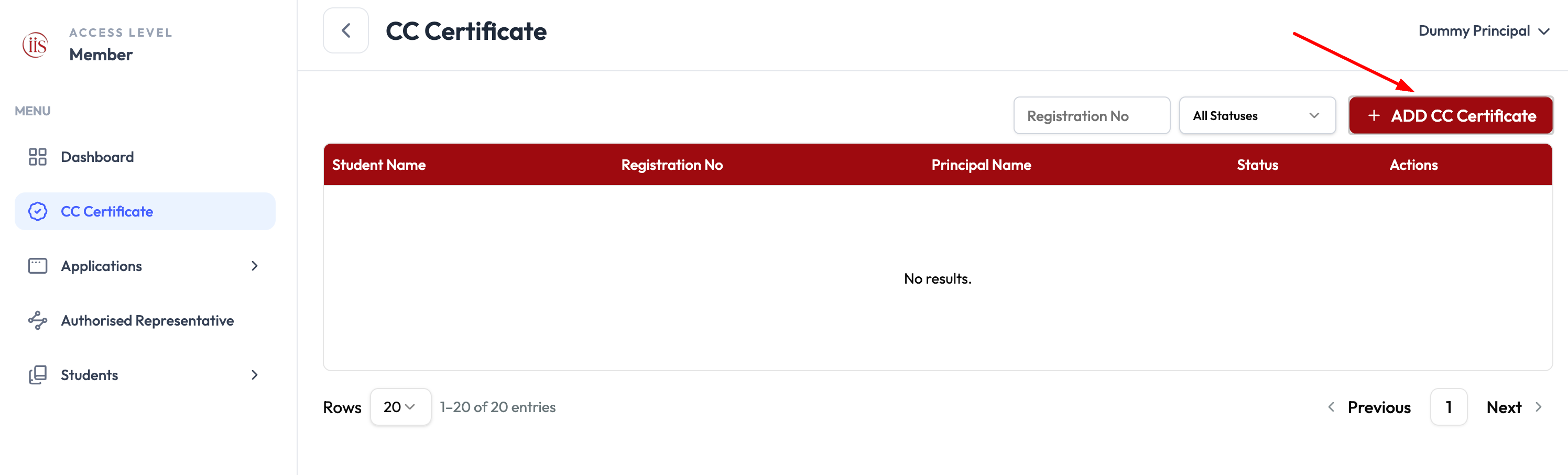
Select “ADD CC Certificate” to start Fetch the student
Enter the student’s Registration No. and select Fetch.
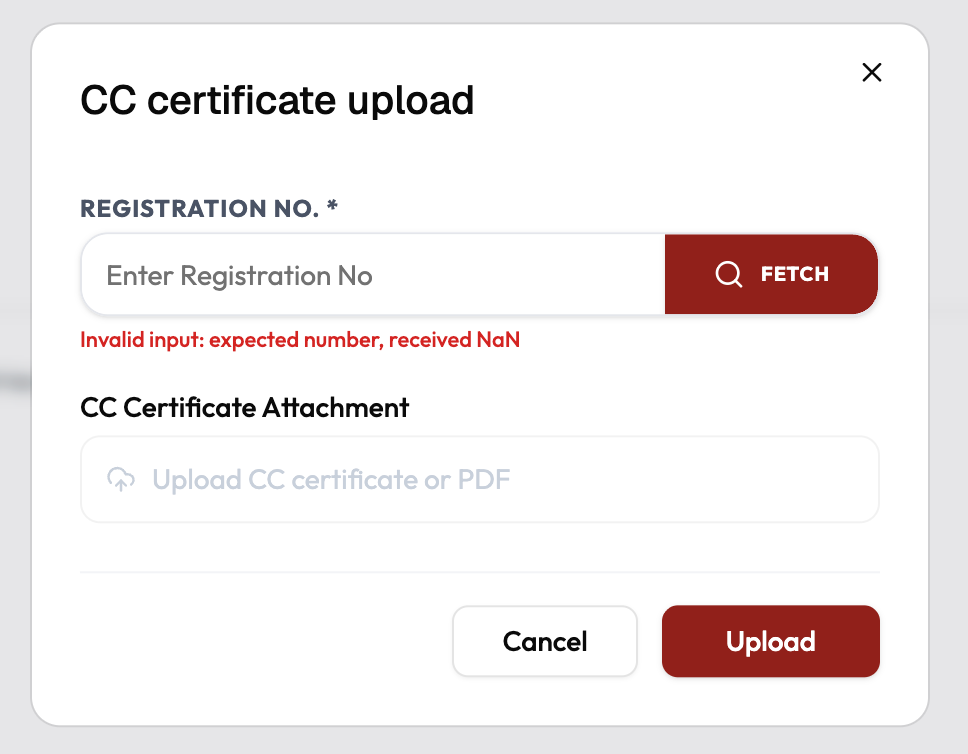
Enter the Registration No, then select Fetch Confirm the student and period
IIS shows the Student Name, Mobile, and Articleship Period From/To in green. Check these match before continuing.
Attach and upload the certificate
Select CC Certificate Attachment to upload the signed certificate or PDF, then select Upload.
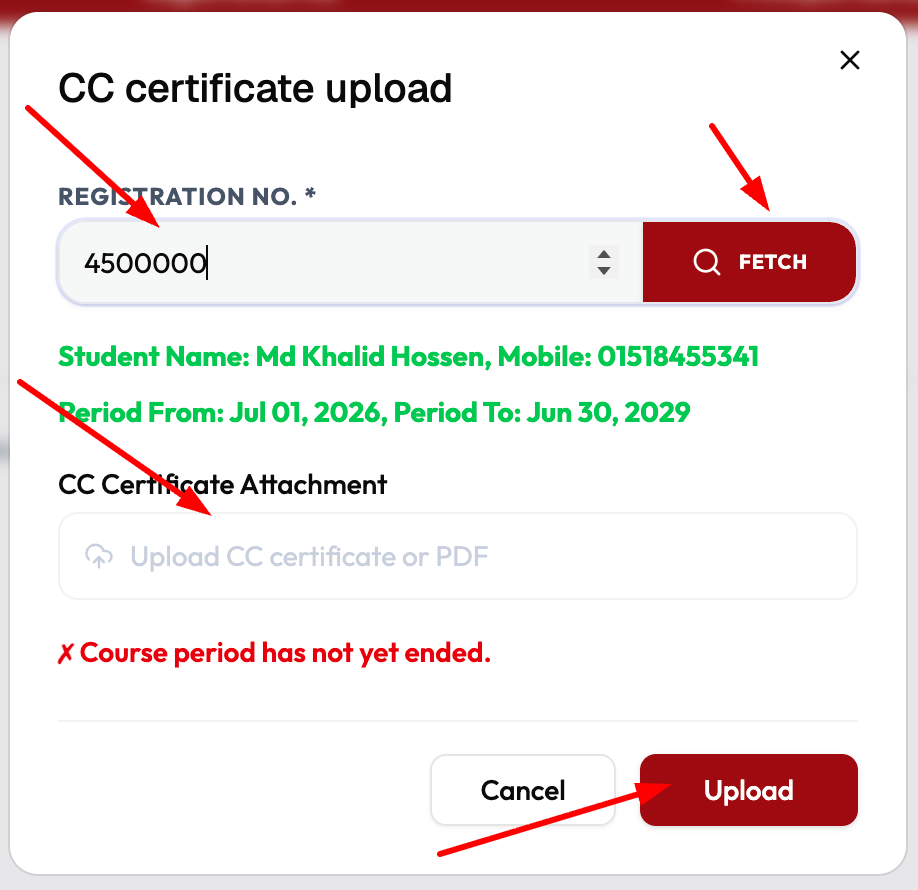
Confirm the student and period, then attach and upload
IIS blocks the upload with “Course period has not yet ended” if today is before the student’s Articleship Period To date. Wait until the period ends, or double-check you fetched the correct student.
To check a student’s Articleship dates before uploading, see My Students.